
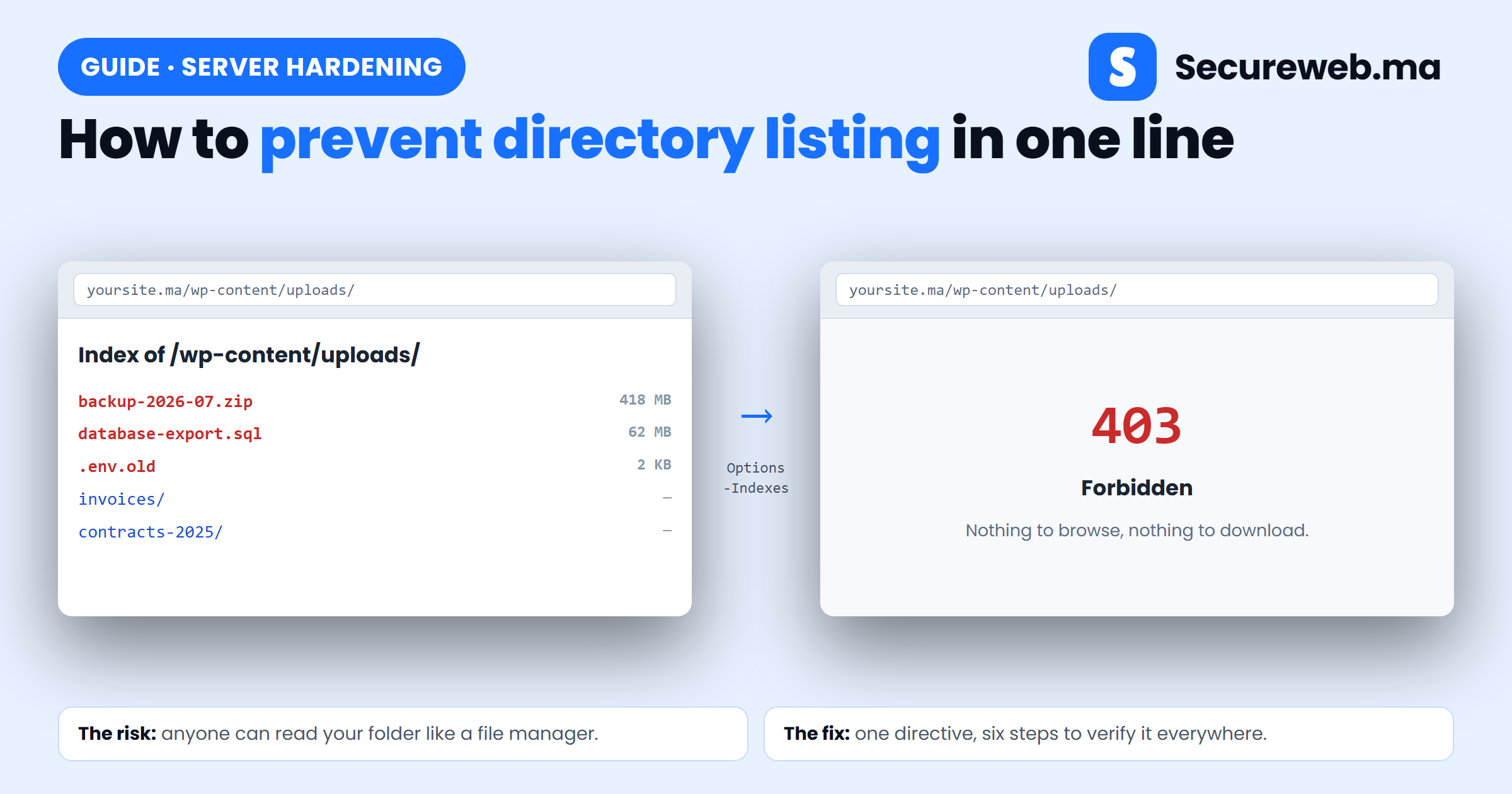
Directory listing is what happens when someone opens a folder on your site and the server, finding no index file to show, helpfully prints the entire contents instead. Your visitor now has a file manager for your website — including the backup zip, the database export and the .env.old nobody remembered to delete.
The fix is one line of configuration. This guide shows you how to prevent directory listing in six short steps: test whether you are exposed, disable it on Apache or Nginx (or from your hosting panel), add the belt-and-braces protections, and confirm it stayed off.
Why directory listing is worth fixing today
On its own it is not an exploit — nothing is being broken into. It is worse than that in practice: it hands an attacker the reconnaissance step for free. They can read your folder structure, spot which plugins and versions you run, and download anything sitting there. Old backups and SQL dumps are the usual prize, because a database export contains your users, your orders and your password hashes.
It is also indexed. Search engines crawl these pages like any other, which is why “index of” searches turn up other people’s backups every day. Automated scanners check the usual folders on every site they touch, so this is found by machines within hours, not by a curious human eventually.
Before you start
- Access to your hosting control panel, or SFTP/SSH access to edit configuration files.
- Knowing whether you run Apache or Nginx — your host’s panel says so, usually on the server information page.
- Ten minutes, and a copy of any file before you edit it. A mistake in
.htaccessreturns a 500 error on the whole site.
Step 1 — Check whether you are exposed
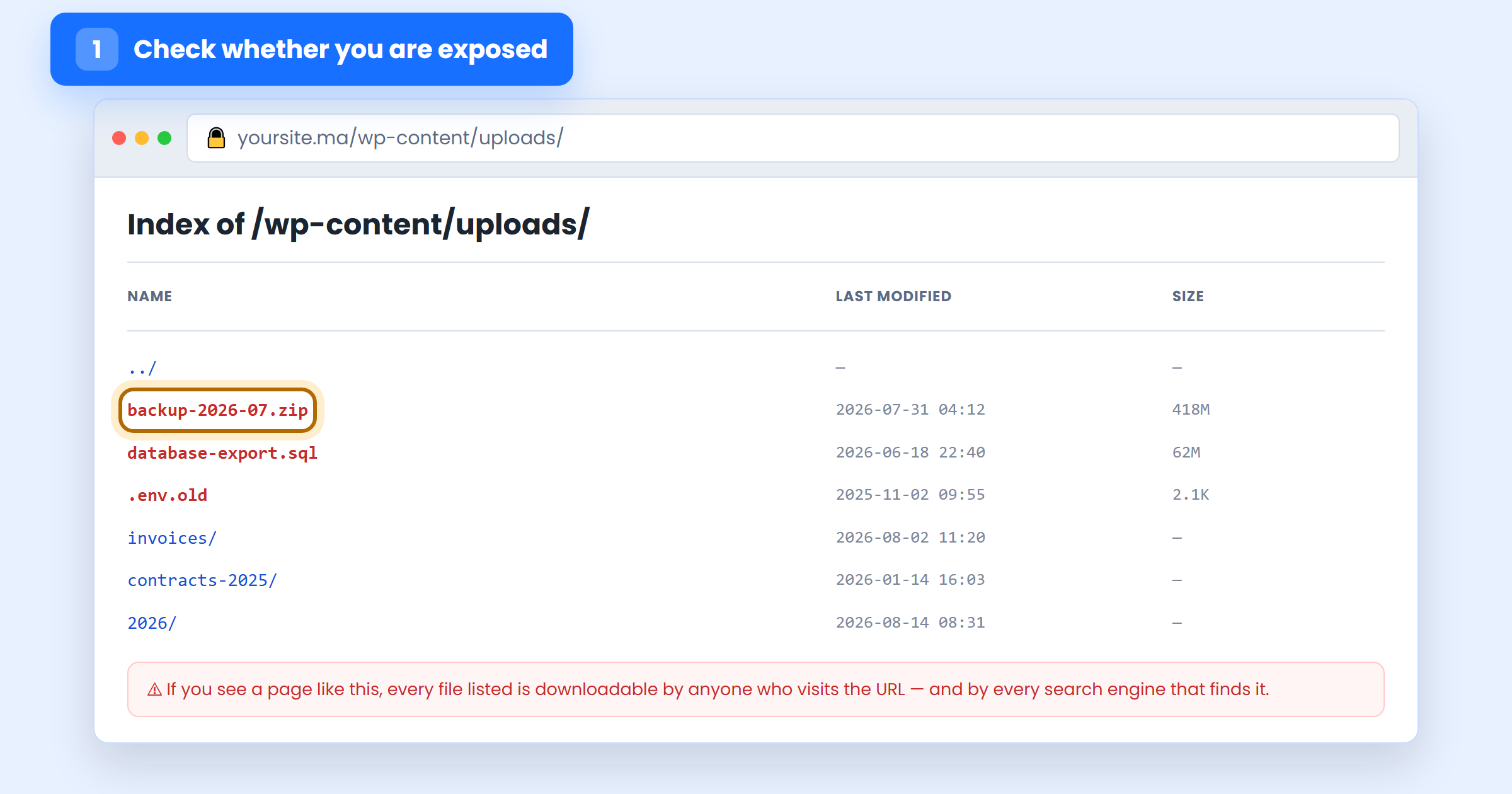
Open a private browser window and visit a folder on your site that has no index file. The usual candidates on WordPress are /wp-content/uploads/, /wp-includes/ and any folder you created yourself for documents or images.
If you get 403 Forbidden or a 404, you are fine. If you get a page headed “Index of /…”, everything on it is public.
Step 2 — Disable it on Apache
Open the .htaccess file in your site’s root folder — or create one if it does not exist — and add this line at the top:
Options -Indexes
Save, then reload the folder from step 1. It should now return 403. The rule applies to that folder and everything beneath it, so one line in the root covers the whole site. If you get a 500 error instead, your host has disabled Options overrides — use step 4.
Step 3 — Disable it on Nginx
Nginx has no .htaccess; the setting lives in the server configuration, which needs root access or a request to your host. Directory listing is off by default here, so if you are seeing one, something switched it on. Add this inside the relevant server or location block:
autoindex off;
Test the configuration with nginx -t before reloading, so a typo does not take the site down.
Step 4 — Or flip the switch in your hosting panel
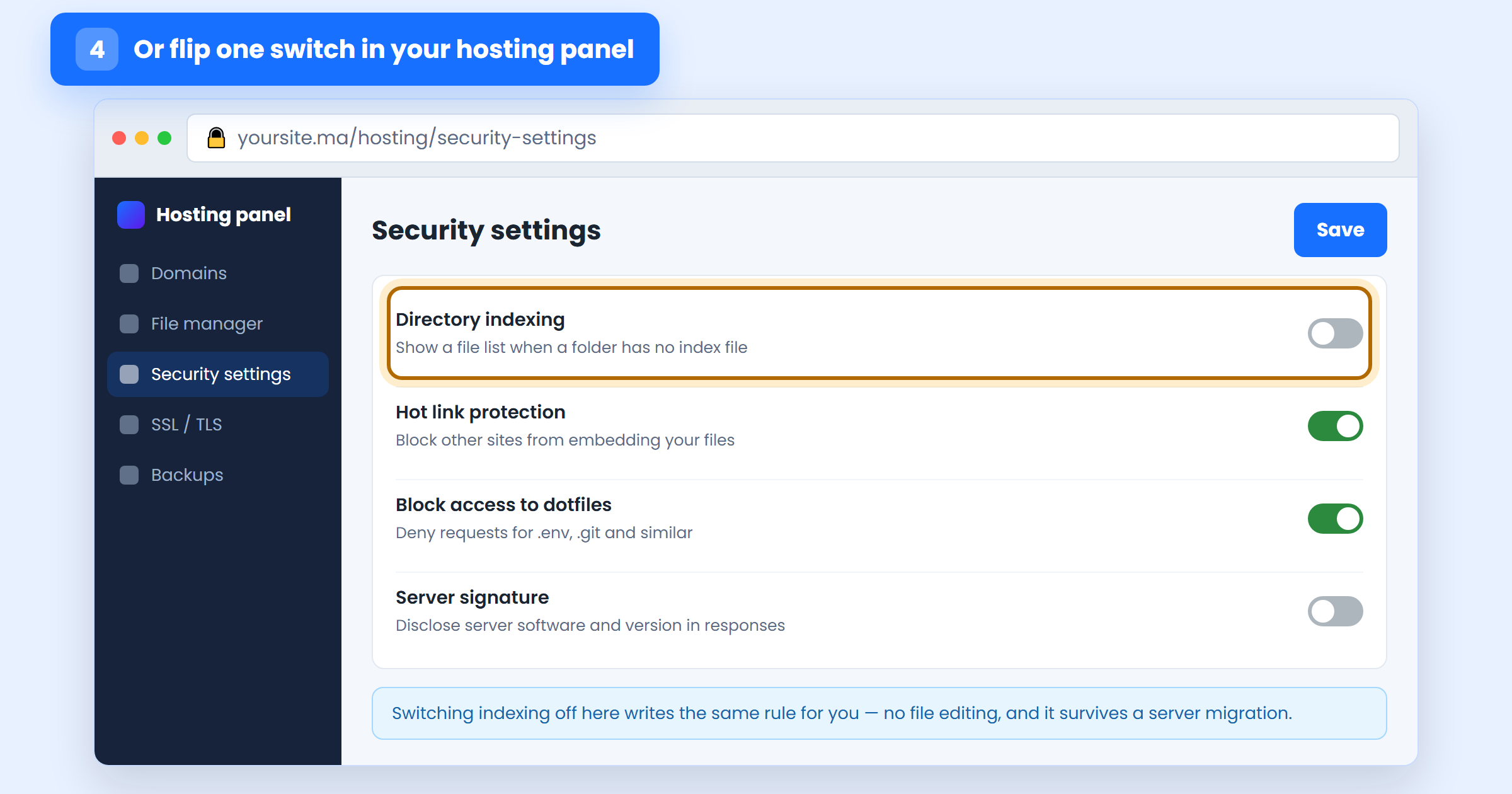
If you would rather not touch configuration files, most hosts expose this directly. Look under Security settings, File manager or Indexes for an option named Directory indexing or Index manager, and set it to no indexing.
Step 5 — Add index files and correct permissions
Two backups for when the configuration is lost in a migration or overwritten by a plugin. Drop an empty index.html or index.php into any folder holding files you care about — the server serves that blank page instead of a listing. And set permissions properly: 755 for directories, 644 for files, never 777.
Better still, stop storing the sensitive things in a web-accessible folder at all. Backups and database exports belong off the server entirely — see step 9 of our guide on how to secure your website.
Step 6 — Re-test, and keep it that way
Recheck the same URLs from step 1 in a private window, and check a few more: a subdomain, a staging copy, and any folder created by a plugin. Migrations, panel changes and restored backups all quietly re-enable indexing, so add it to a monthly check.
If a listing has already been indexed by Google, removing it is only half the job — request removal in Search Console, and treat anything that was downloadable as compromised: rotate the database password and any API keys that appeared in an exposed file.
Frequently asked questions
Does disabling directory listing hurt SEO?
No. These pages have no content worth ranking, and Google indexing your backup folder is a liability, not traffic. Your normal pages are unaffected.
My files are still downloadable if someone guesses the name. Is that normal?
Yes — this setting hides the list, not the files. A direct URL still works. That is why step 5 matters: sensitive files should not be in a public folder at all.
I added the line and nothing changed.
Clear your site and browser cache, and confirm you edited the .htaccess that the site actually uses — sites in a subfolder or behind a CDN often have more than one. On Nginx, .htaccess is ignored entirely; use step 3 or 4.
Prevent directory listing: the bottom line
One directive closes it, and five minutes of testing proves it. The reason it keeps appearing on real business sites is not difficulty — it is that nobody ever checks, and a migration or a restored backup silently turns it back on.
Run our free website scanner to see whether any folder on your site is currently browsable, along with the other configuration issues attackers look for first.