

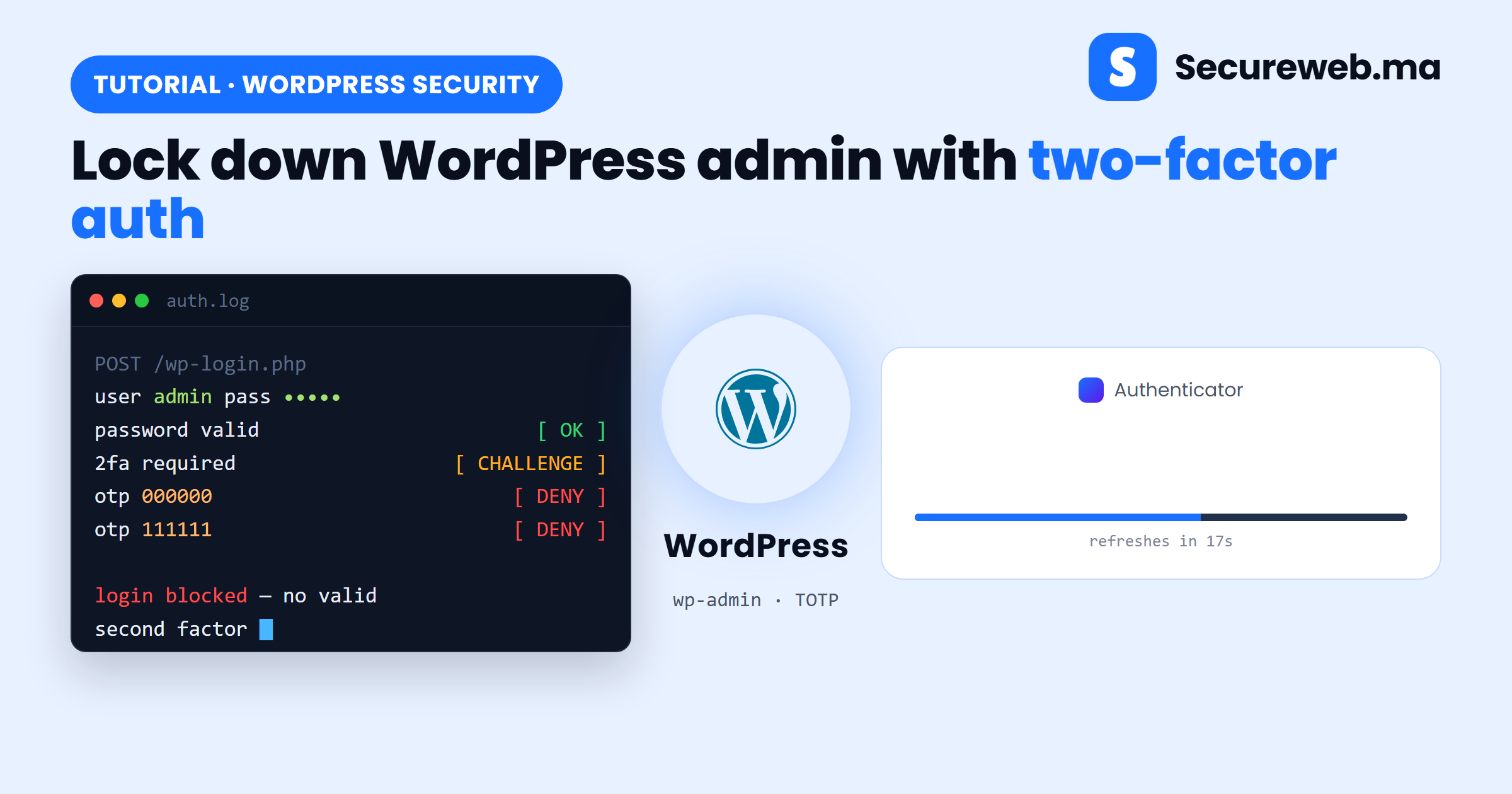
WordPress powers a large share of business websites in Morocco and around the world, which makes the wp-admin login a constant target for automated password-guessing (brute-force) attacks. WordPress two-factor authentication (2FA) is the single most effective way to shut those attacks down: even if your password leaks in a data breach, an attacker still can’t get in without the second factor.
This guide walks you through setting up WordPress two-factor authentication in four clear steps — from installing a plugin to enforcing it for every administrator — with a screenshot for each step.
What is WordPress two-factor authentication?
Two-factor authentication adds a second check on top of your password. After you enter your username and password (something you know), WordPress asks for a short code from an app on your phone (something you have). Even if an attacker has stolen your password, they cannot log in without that second factor.
The most reliable method is TOTP (Time-based One-Time Password): an authenticator app such as Google Authenticator, Microsoft Authenticator, or Authy generates a fresh six-digit code every 30 seconds. It works offline and is far safer than codes sent by SMS, which can be intercepted or redirected through SIM-swapping.
Before you start
- An administrator account on your WordPress site.
- An authenticator app on your phone — Google Authenticator, Microsoft Authenticator, Authy, or a password manager that supports TOTP.
- A few minutes and a safe place to store backup codes (a password manager or a locked drawer).
If more than one person can log in to your site, plan to enable 2FA for every administrator and editor. One unprotected account is enough to undo the protection on all the others.
Step 1 — Install a two-factor authentication plugin
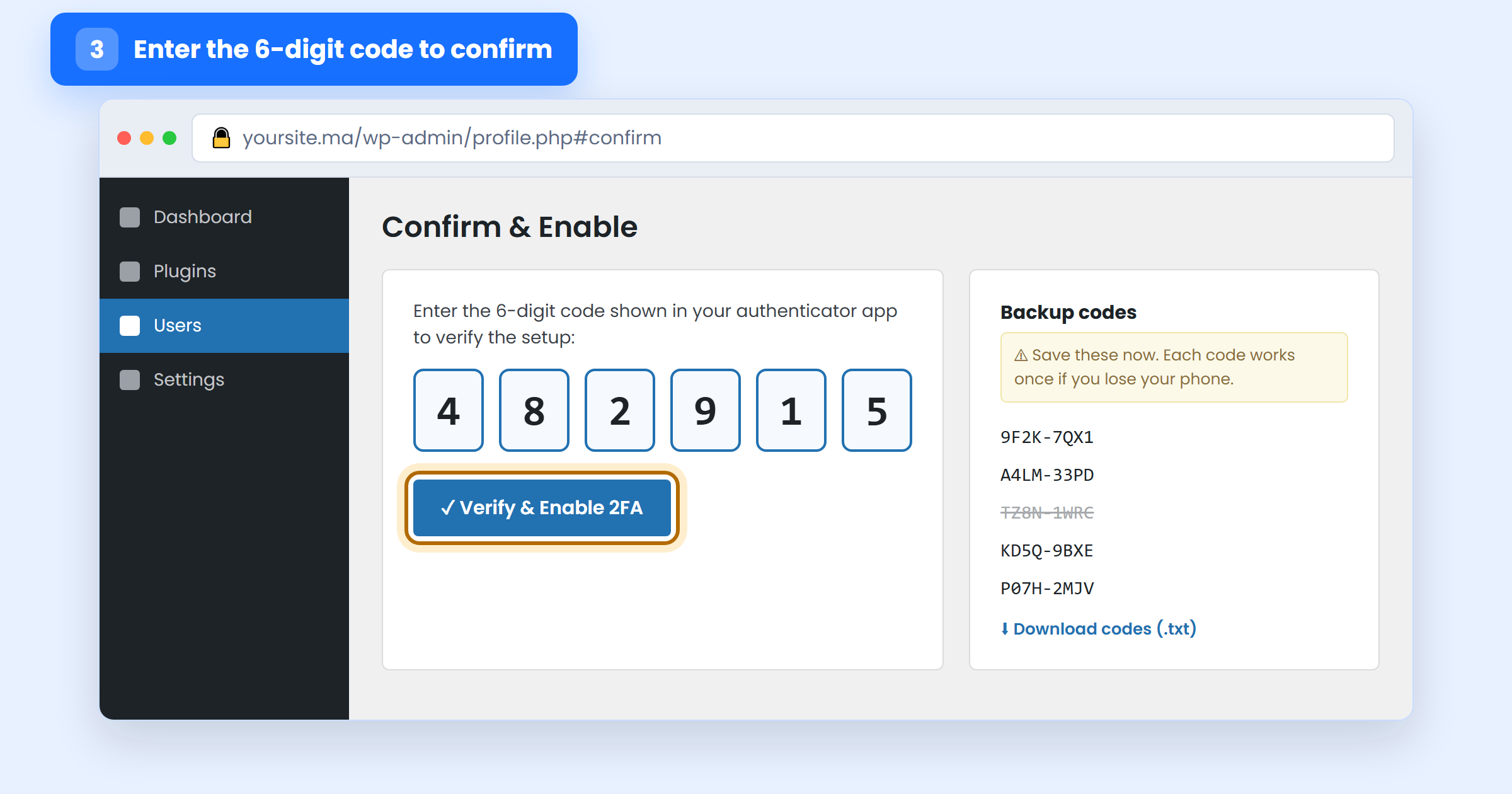
In your dashboard, go to Plugins → Add New and search for “two-factor authentication”. Several trusted options exist; the free, community-maintained Two-Factor plugin from the WordPress.org team is a solid, no-frills choice. Click Install Now, then Activate.
Step 2 — Scan the QR code with your authenticator app
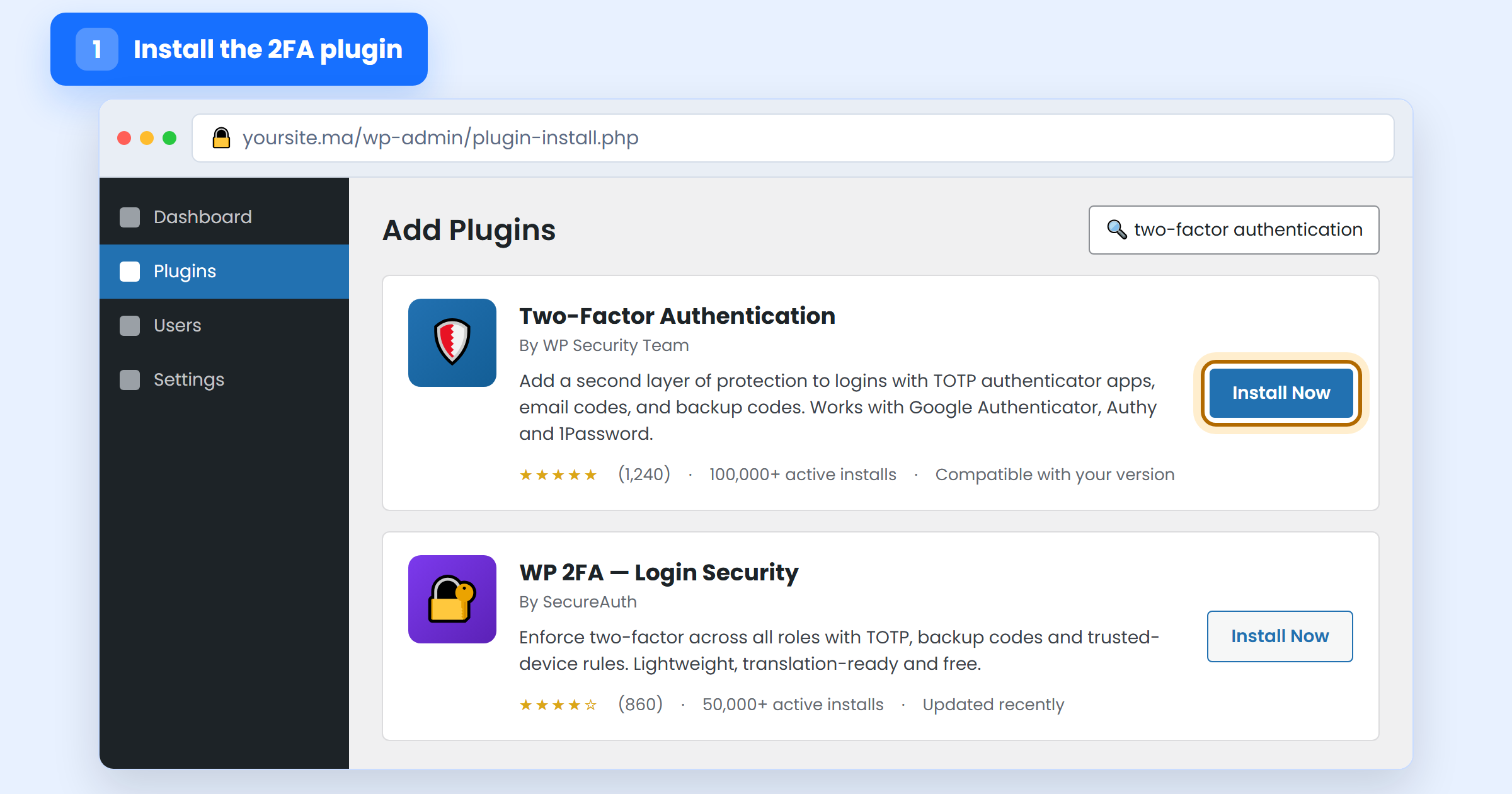
Open your profile under Users → Profile and find the Two-Factor Options section. Choose the Authenticator App (TOTP) method to display a QR code. On your phone, open your authenticator app, tap the + button, choose Scan a QR code, and point the camera at your screen. Can’t scan it? Every plugin also shows a text key you can type in manually.
Step 3 — Enter the six-digit code and save your backup codes
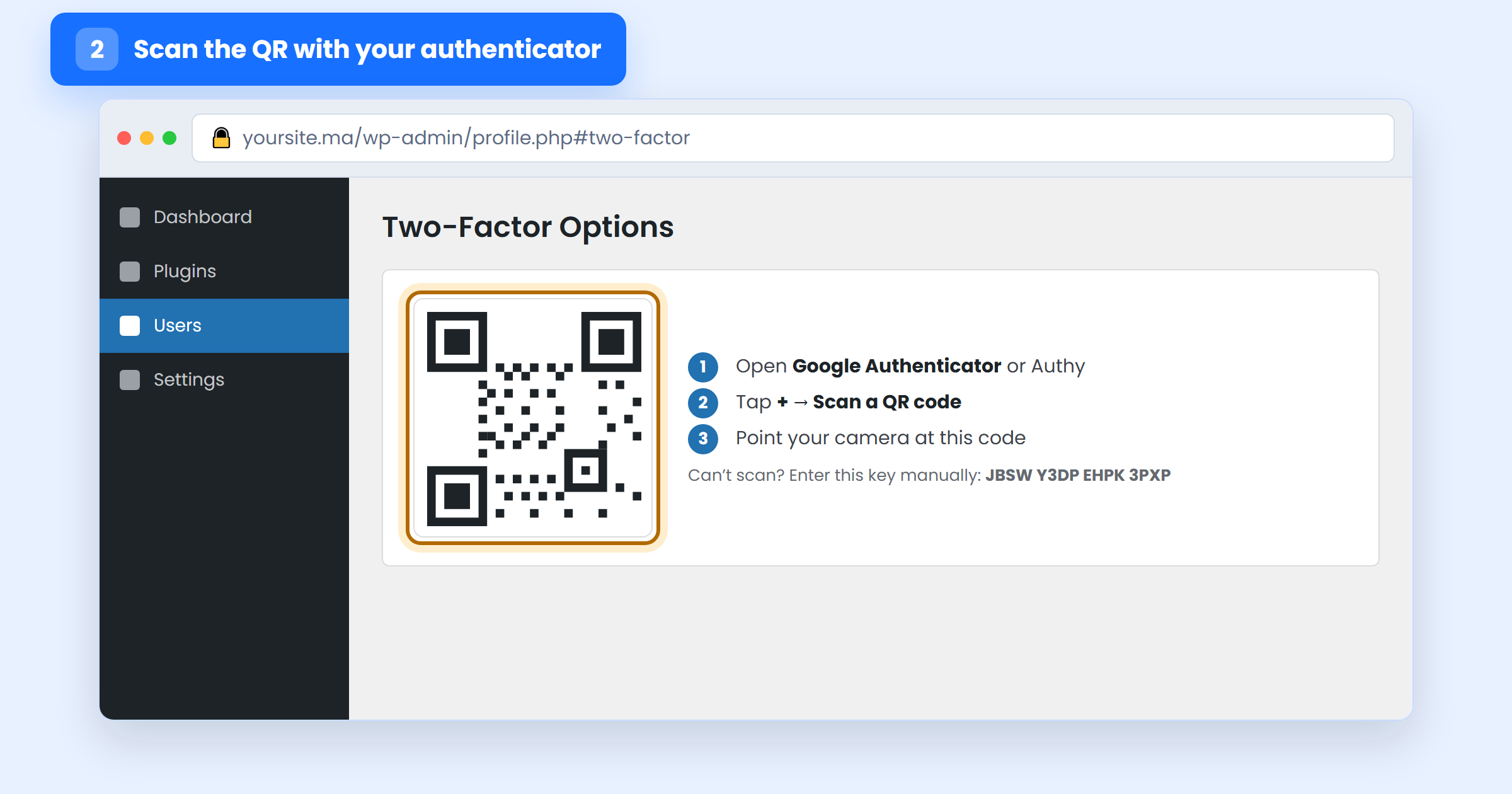
Your app now shows a six-digit code that changes every 30 seconds. Type the current code into WordPress and click Verify & Enable to confirm the link. WordPress then generates a set of one-time backup codes.
Save these backup codes now. Download or print them and keep them somewhere safe and offline. They are your way back in if you ever lose your phone — and each code works only once.
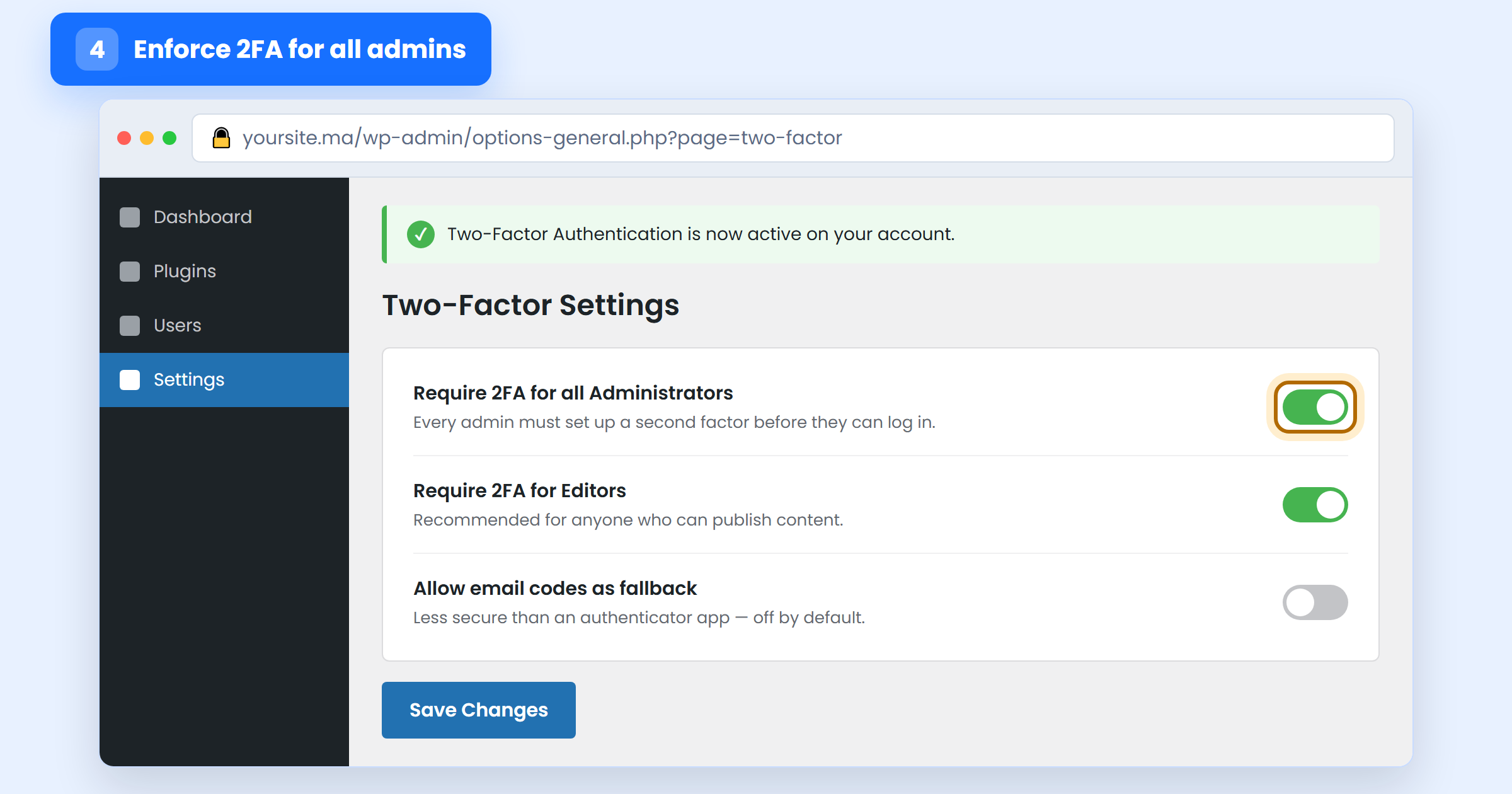
Step 4 — Enforce WordPress two-factor authentication for all admins
Protecting only your own account leaves every other admin as an open door. In the plugin’s settings (usually under Settings → Two-Factor), turn on Require 2FA for all Administrators — and ideally for Editors too, since they can publish content. Save your changes. Existing users will be prompted to set up their second factor the next time they log in.
Test your setup — and what to do if you get locked out
Log out and sign back in. After your password, WordPress should now ask for a code from your app. Enter it to confirm everything works.
If you ever lose access to your authenticator app, log in with one of your backup codes. If you have no codes either, an administrator can temporarily disable 2FA by connecting over SFTP/FTP and renaming the plugin’s folder inside wp-content/plugins/. That switches the plugin off so you can regain access — then simply set it up again.
Frequently asked questions
Does two-factor authentication slow down every login?
Only slightly — you enter one extra six-digit code. Most plugins let you mark your own computer as a trusted device, so you are not asked for a code on every visit.
Is an authenticator app better than SMS codes?
Yes. SMS codes can be intercepted or redirected through SIM-swapping. A TOTP authenticator app generates codes on your device, works offline, and is the recommended method.
What if I manage several WordPress sites?
Repeat these steps on each site. A single authenticator app can hold codes for many accounts, so you can manage them all from one place.
WordPress two-factor authentication: the bottom line
Two-factor authentication is one of the highest-impact, lowest-cost security controls you can add to a WordPress site. It neutralises the password-guessing and credential-stuffing attacks that make up the bulk of login attempts. Pair it with strong, unique passwords, keep WordPress, your theme, and your plugins updated (see the official Hardening WordPress guide), and review the rest of our checklist for securing a WordPress website.
Want an expert to check your defenses? SecureWeb offers a free website security scan and hands-on security audits built for Moroccan businesses — a quick way to find the gaps before an attacker does.